Getting Started with Agent Builder
Create and share custom Workflow agents to automate repetitive tasks and elevate your team's output.
Last updated: Jun 30, 2026
Overview
Use Agent Builder to codify repeatable work—whether it’s document review, client intake, or multi-step legal analysis—so your team can execute with precision and speed.
Video Tutorial
Learn how to quickly build a Workflow agent from scratch.
Note: Since creating the videos in this article, we have renamed the product to Agent Builder and slightly modified the navigation. Otherwise, the instructions on creating Workflow agents are largely similar.
Key Features of Agent Builder:
- Modular Design: Create Workflow agents with step-by-step guidance including user inputs, AI actions, logic conditions, and structured outputs.
- Firm-Custom Logic: Add branching paths with Conditional steps based on selections, tailoring the flow to user choices.
- Prompt Chaining: Connect prompts across steps to build context-aware, iterative responses.
- Secure Collaboration: Assign view, edit, or run access while retaining control over your assets.
- Embedded Expertise: Weave in prior art and work product through embedded files, or documents that are always available in Workflow agents for consistency.
Workflow agents can also create and edit files directly within a workflow, using a dedicated drafting block for each file type:
- Document drafting block: create or edit Word documents
- PowerPoint drafting block: create or edit PowerPoint presentations
- Excel drafting block: create or edit Excel spreadsheets
Teams can generate new files, modify existing files, apply standardized templates, and incorporate supporting context files as part of a repeatable workflow process.
Best Practices
- Label clearly: Use descriptive output names to track variables across steps.
- Modularize: Break long Workflow agents into reusable sequences.
- Test frequently: Use Test Mode throughout your build to catch logic issues early.
- Use context thoughtfully: Attach only relevant variables to each AI step.
- Stay secure: Never include PII or confidential client data in prompt fields or notes.
Creating a Workflow Agent
- Click Agent Builder in the left-side menu (Under ‘Build’) to access your Workflow agent dashboard.
- Click + Create Workflow agent in the top right corner.

Building the Workflow Agent
Important notes before you begin:
- Every Workflow agent must begin with a User Input step and end with an Output step.
- Saving does not publish your Workflow agent. Changes are saved as a draft until explicitly published.
- Follow-ups are enabled by default.
Build with Harvey helps you create Workflow agents by describing what you want Harvey to automate.
When you create a Workflow agent, Harvey generates an initial workflow structure based on:
- A starter prompt
- Or your own custom instructions
You can continue refining the workflow by chatting with Harvey or manually editing workflow blocks.
This experience replaces and upgrades the previous Words to Workflows flow.
Tip: Use the Test button to trial the Workflow agent for yourself.
For an overview of how steps can be modified, continue reading the section below, How to Build a Workflow Agent Manually.
Create a Workflow with Build with Harvey
- Click Agent Builder in the left-side menu.
- Select + Create Workflow agent.
- In the Build with Harvey screen:
- Select a starter prompt
- Or enter your own workflow description
- Submit your prompt to generate the initial workflow.
- Review the generated workflow structure.
- Continue refining the workflow by:
- Chatting with Harvey
- Editing workflow blocks manually
- Adding tools, instructions, or knowledge sources
Build with Harvey generates an editable starting point that you can customize for your workflow needs.
Example Workflow Prompts
- Draft a reply outline based on the uploaded opening and response briefs. Return the initial outline to the user. Ask if the user has feedback. Then incorporate that feedback into the final outline.
- Request an ASX announcement template to fill with the following information: the material acquisition agreement, the company's closing share price on the ASX on the last trading day, and the 1 and 3 month volume weighted average price (VWAP). For quotes or other information requested in the template that don't appear in the information provided, leave a placeholder.
You can continue iterating on workflows conversationally after generation.
For example, you can ask Harvey to:
- Add additional workflow steps
- Modify instructionsUpdate workflow logic
- Include steps for drafting or review
- Explain what the workflow does
You can also manually edit workflow blocks at any time.
Drafting Blocks (Documents, PowerPoint, and Excel)
Workflow agents can create and edit Word, PowerPoint, and Excel files directly within a workflow, using a dedicated drafting block for each file type.
With these blocks, you can:
- Generate new files or modify existing ones as part of a repeatable workflow
- Apply standardized templates, such as your firm’s deck layout or checklist format, for consistent output
- Incorporate supporting context files and prior workflow outputs to guide content

To configure a drafting block:
- In Workflow Builder, create a new Workflow agent or select an existing one to edit.
- Add a PowerPoint drafting or Excel drafting block by:
- Using Build with Harvey to describe the workflow you want to build, specifying if a PowerPoint or Excel file is needed.
- Adding the drafting block manually.
- Under Presentation(s) / Spreadsheet(s) to edit, upload the file you want to edit — either as an embedded file from your computer or Vault, or from a prior workflow block's output.
- If you want Harvey to generate a new file from scratch, leave the Presentation(s) / Spreadsheet(s) to edit field blank.
- Under Workflow Agent context, add any other context Harvey should reference when creating or editing your file.
- Under Instructions, tell Harvey how to create or edit the file, and adjust the output label.
- Add a Response block and attach the drafting block's output.
Tip: Leave the file-to-edit field blank if you want Harvey to generate a new document, presentation, or spreadsheet from scratch.
Best Practices for Writing Workflow agents
- Use your preferred language. Prompt in whichever language is most comfortable to you. While Harvey will construct a Workflow agent in the same language, it might miss the dialect you are prompting in.
- Be clear and direct. Lay out the task in clear terms, similar to how you would instruct an associate. Vague descriptions will still be processed, but might not be as effective in nailing down the details.
- Specify practice area and jurisdiction. Be specific in which practice area or jurisdictions that your Workflow agent will be used in. This will help construct prompts that recognize the nuance of the specific practice area or jurisdiction.
- Refine workflows iteratively. Continue refining your workflow agent conversationally with Build with Harvey (Magic Builder). You can ask Harvey to update workflow logic, adjust prompts, or reorganize workflow steps as your requirements evolve.
How to Build a Workflow Agent Manually
Once you’ve defined the Workflow agent details, you’ll be prompted to Add step. You can configure four types of steps:
- User Input: Collect files, freeform text, review tables or selections from users.
- AI Action: Run a custom prompt using prior inputs as context.
- Logic: Direct flow using Conditional logic based on user selections.
- Output: Present the AI-generated results back to the user.
Each input is automatically labeled with an output name, which can be referenced in later steps using the “@” prefix or included as an attachment in the Context field.

Step 1: User Inputs
First, you will add steps into your Agent Builder to collect files, freeform text, or selections from users. Use any of the below inputs to get started:
- File Upload: Request up to 50 documents per step (maximum 20MB total). Configure accepted file types and provide upload instructions.
- Freeform Text: Capture unstructured user input.
- Selection List: Present dropdown-style choices for users to select from.
Optional Inputs and Default Context
In the context panel, you can now mark user input steps (file uploads or freeform text) as optional.
- When a step is set as optional, users are not required to upload a file or enter text to continue running the workflow.
- Instead, when building the Workflow agent you must designate default files or text as embedded context for the AI to use when no input is provided.
This allows Workflow agents to flex between user-provided materials and organization-standard defaults—ideal for scenarios like:
- “Upload your contract or use the standard supply agreement.”
- “Add your own analysis or rely on the embedded precedent memo.”
To configure this:
- Open the user input step.
- In the context panel, toggle make step optional on.
- Define default embedded files or text for context to be used if the field is left blank.


Step 2: Configure Prompts with AI Actions
Next, define your prompt and attach context from the user inputs above. This step runs AI-powered analysis using the inputs you’ve collected. Each prompt step should include:
- Prompt text: Define the task you want Harvey to perform.
- For example, use the variables provided in the previous step—such as supply_agreement, Special_Instructions, and Party—by referencing them directly in your prompt.

- Context: Attach relevant inputs from earlier steps (e.g., uploaded files, selections, or text fields).
- You can add reference documents and team expertise to a Workflow agent by embedding files directly into it. Embedded files act as built-in references—such as standard precedents—so team members don’t need to upload them manually each time. To manage your embedded files, select Manage files in the righthand pane. From there, you can add, delete, or replace embedded files across your workflows. Replacing an embedded file will automatically update it in every workflow where it’s used.
- To manage embedded files in a specific prompt block, click Add embedded files in that prompt’s context section. From there, you can upload documents directly into the agent. Once uploaded, these files can be used across multiple prompts. Each Workflow agent can include up to 50 embedded documents.
- [Optional] Attach knowledge sources so that your Workflow agent results are grounded in timely, high-quality sources. To embed web search or other knowledge sources, click ‘Add Knowledge Source’ in the righthand pane and select the Knowledge Source you’d like to attach. Note: sources do not automatically apply to subsequent Workflow agent steps, so it must be embedded in each required prompt block.

- [Optional] Toggle on Deep Analysis, if enabled in your workspace, to search and synthesize information from all knowledge sources available to you and receive structured insights. Note: Deep Analysis is only available for the existing set of knowledge sources present in Agent Builder.
- Model selection: Choose the model that will execute the prompt.
- Output label: Assign a clear name so this output can be reused in future steps.
You can also chain prompts together, deciding whether each step builds on a previous output or starts fresh.

Step 3: Add Conditional Logic & Branching
Conditional logic enables dynamic branching based on earlier inputs. You can:
- Pair with Selection List steps to route users through different paths.
- Map multiple selections to a shared path (e.g., A/B/C → Branch X).
This allows nuanced flow design based on scenario-specific needs.

Step 4: Response Steps
Use a Response step to display the final output of your workflow.
- Choose which generated outputs to show—and in what order.
- You can display all outputs, or only the most relevant ones, depending on your use case.
- Every workflow must end with a Response step. This step wraps up your workflow and delivers clear, actionable AI results to the user.

Editing Steps
You can reorder, add, or delete steps using the ellipsis menu in the corner of each step card.

You can also refine workflows conversationally with Build with Harvey (Magic Builder) by describing the changes you want Harvey to make.
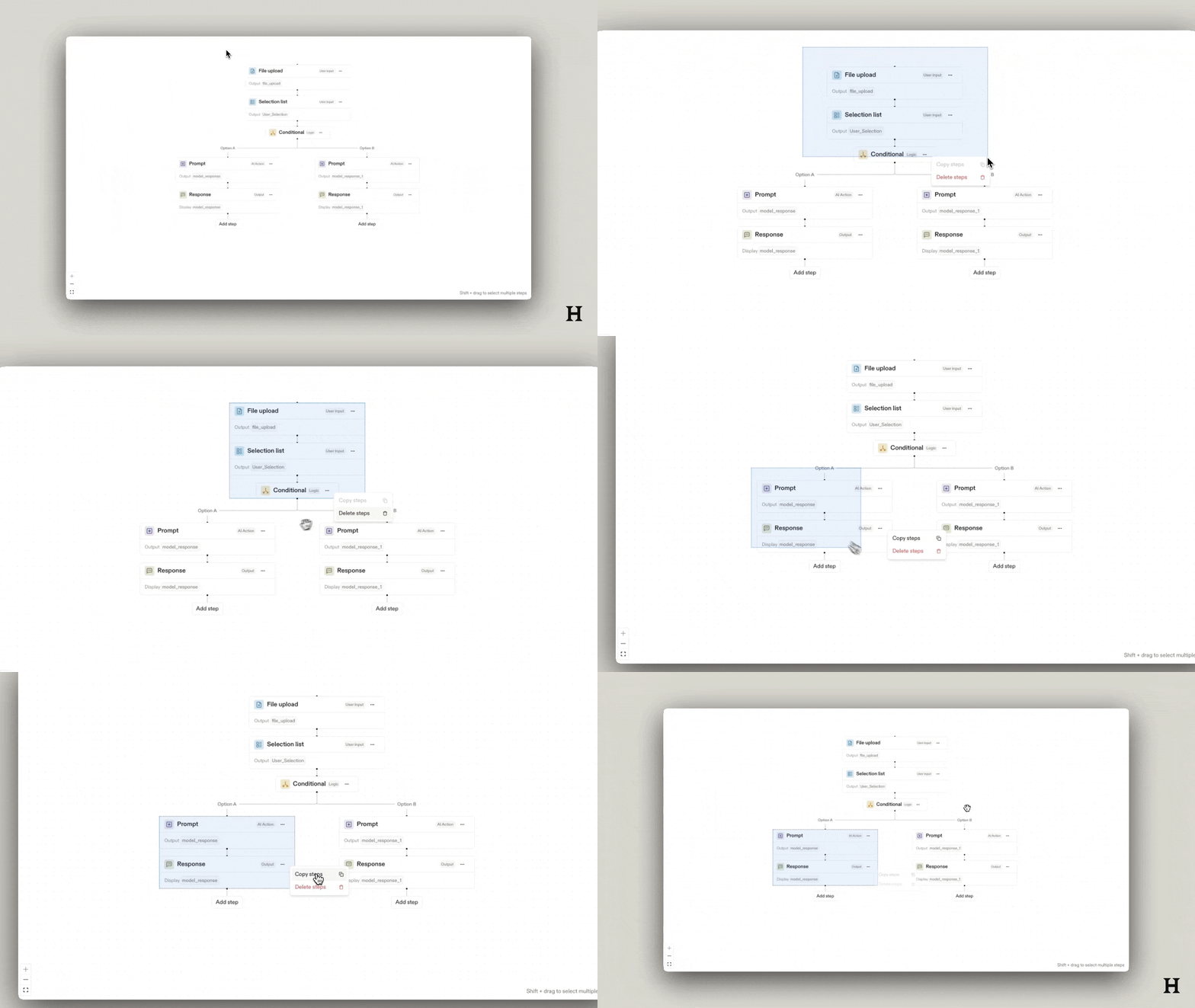
Making bulk changes: To delete or duplicate steps in bulk, press and hold the Shift key on your keyboard, then click and drag your mouse over the steps.
Advanced Building
For step-by-step guidance on creating a review table, selecting a review table, or setting table instructions in Agent Builder, check out the tutorials below.
Note: Since creating the videos in this article, we have renamed the product to Agent Builder and slightly modified the navigation. Otherwise, the instructions on creating Workflow agents are largely similar.
Video Tutorial: Creating a Review Table in Agent Builder
Video Tutorial: Selecting a Review Table in Agent Builder
Set Workflow Agent Details
To help others in your workspace identify what the Workflow agent can be used for you can set workflow details.
- Once you have your Workflow agent open, either click the ellipses menu in the title bar and select Edit Workflow agent details or, click the pencil icon next to the title of the Workflow agent. You have the option to add the following details based on your intended use of the Workflow agent:
- Name: Clear and descriptive, for internal identification.
- Description: High-level summary of what the workflow does.
- Notes: Optional field for build-time context (not visible to end users).
- Tags: Apply category tags to organize your workflows.

- Click Save to update changes.

Note: Do not include confidential or privileged information in the Name or Description fields, as these are visible to anyone with shared access.
Testing a Workflow Agent
Click Test to preview how your Workflow agent will run for end users. This opens Test Mode in a new tab, where you can validate step logic, prompts, and outputs in a live environment.